A space per team, project, or committee
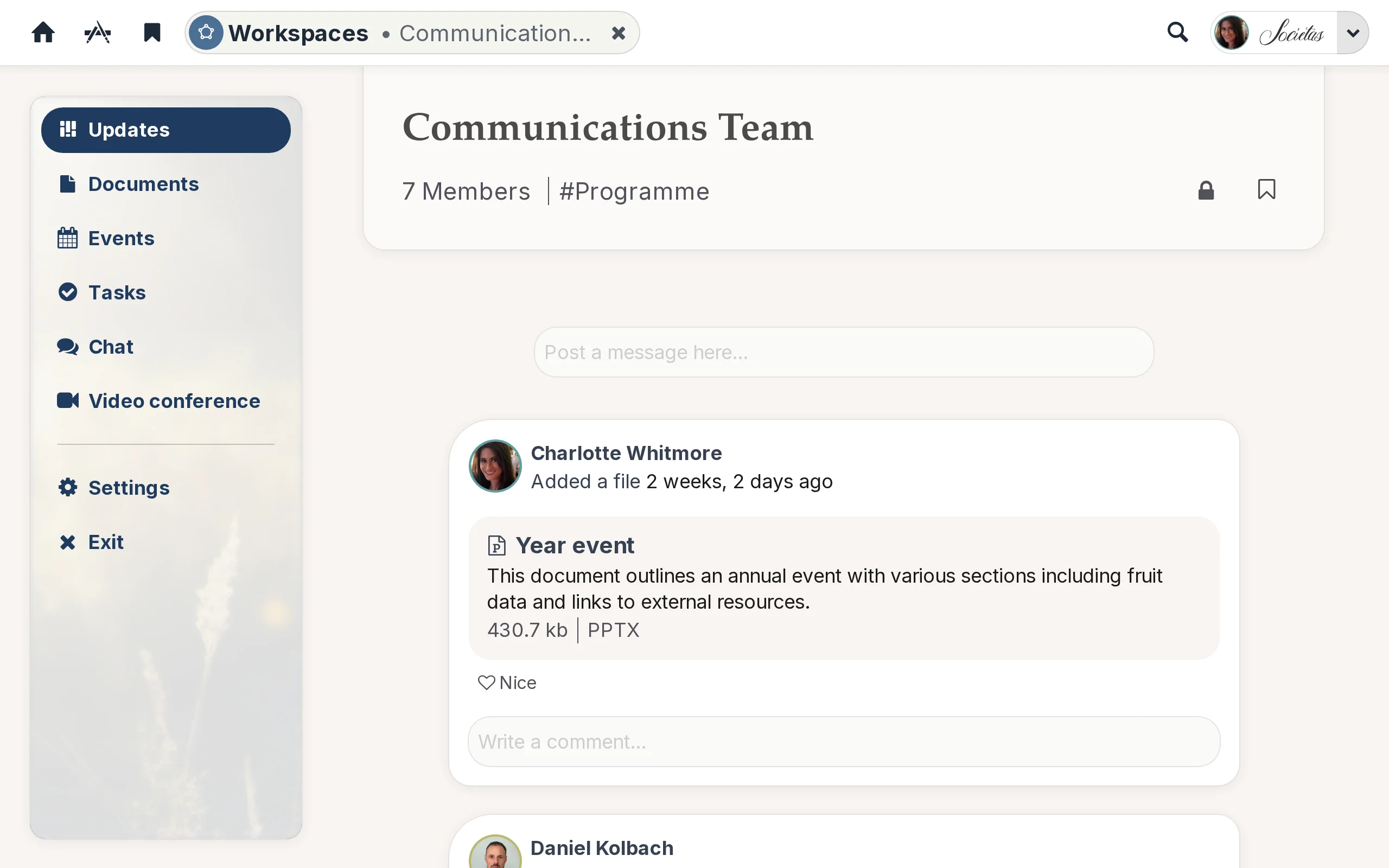
Create a team space for a committee, a board, a project team, or any kind of group within your organisation or community, and Kikaron sets up a self-contained working environment in seconds. Every team space automatically comes with its own Calendar, its own scoped Tasks list, its own Meetings video-conference room, its own Messages group-chat channel, and a protected, syncable Documents folder — all visible only to the team space’s members, with no extra setup.
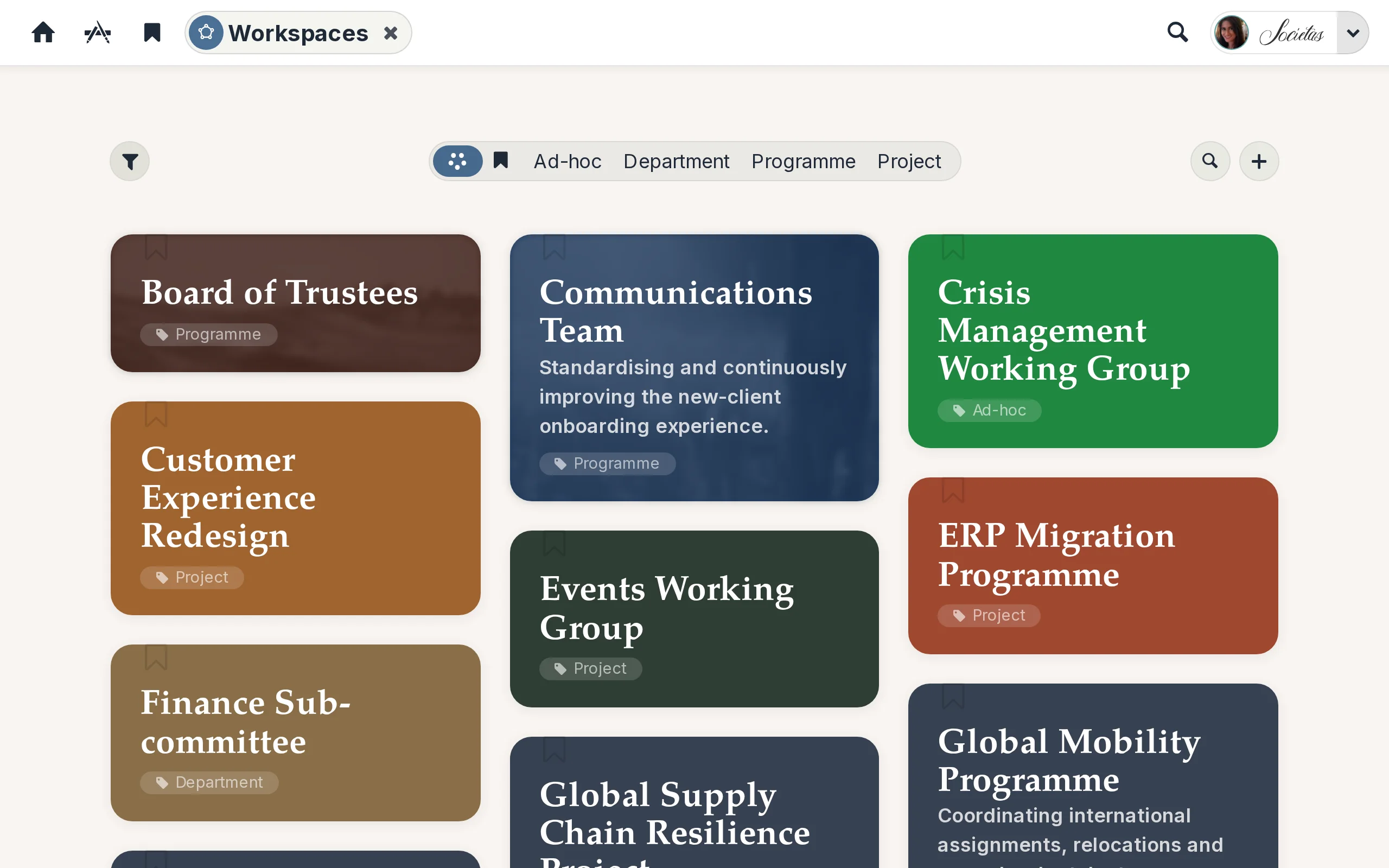
The landing screen is a grid of tiles — one per team space you belong to or can discover — with a hero image, member count, and short description. Tabs across the top filter by All, Bookmarked, or any tag your team uses, plus a search box and sort controls to narrow the list.
Members and roles
Each team space has its own member list — pulled from Contacts — with three roles: Guest (read-only), Contributor (create and edit), and Administrator (full control). When Members can invite is on, contributors can add people themselves; otherwise that’s an admin-only action.
Documents drafted together, published with one click
Inside a team space, members draft, review, discuss, and refine documents together — rich-text and Markdown pages, multi-section long-form articles, and uploaded PDF, Word, Excel, and PowerPoint files, all previewed straight in the browser. The whole folder can sync to a member’s local machine if they prefer a local copy alongside the in-browser view — native sync apps are available for Android, iPhone, iPad, macOS, Windows, and Linux. When something is ready for the wider hub, one click publishes it from the team space into the shared Documents library — or onward to the public documents site if you flip its visibility to public.
Word, Excel, PowerPoint — edit without installing anything
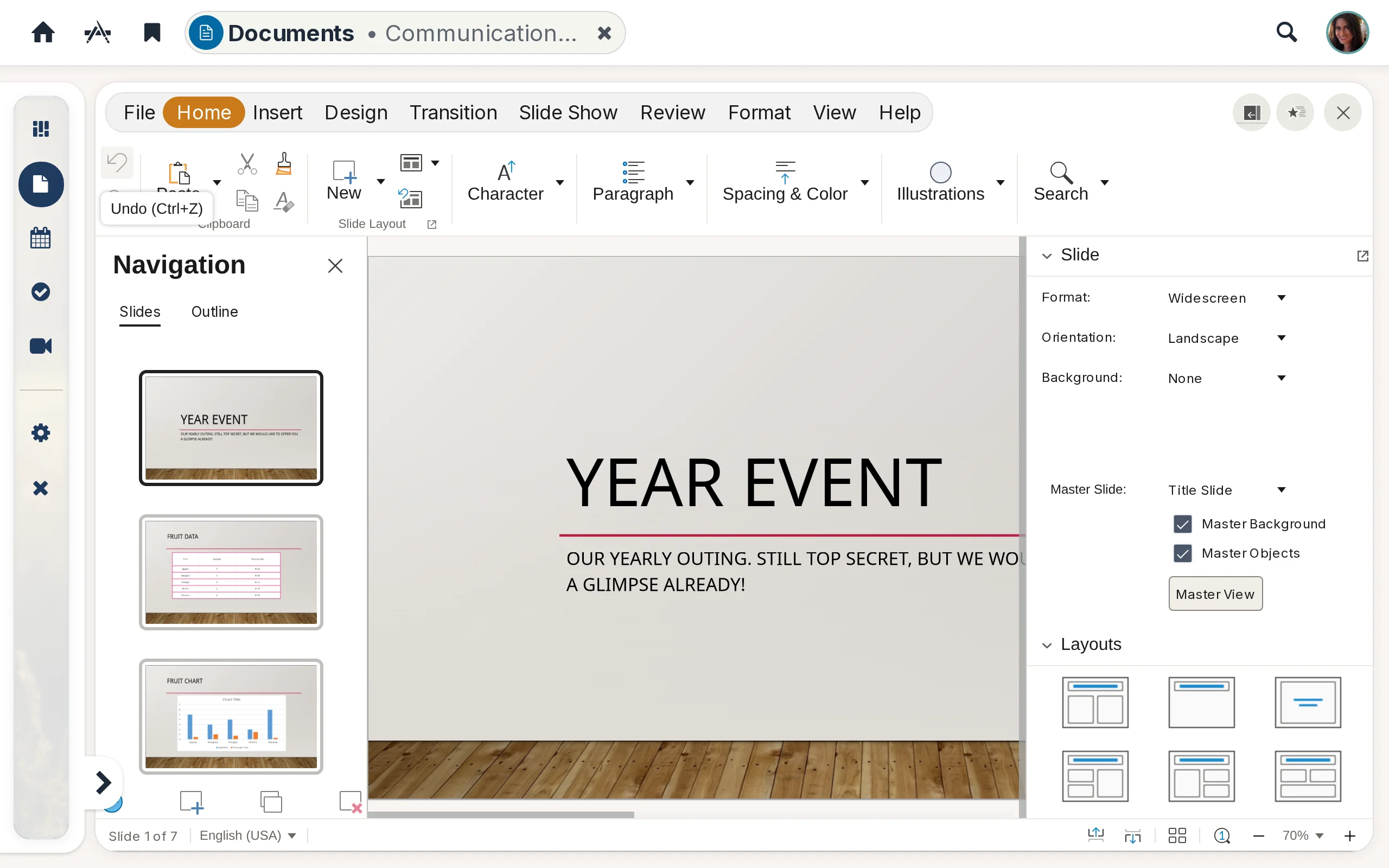
Word, PowerPoint and Excel files are edited right inside the team space using the built-in Collabora Office: no download, no Office install required. Every Office document can be viewed and edited straight in the browser.
Diagrams, flow charts, and mind maps
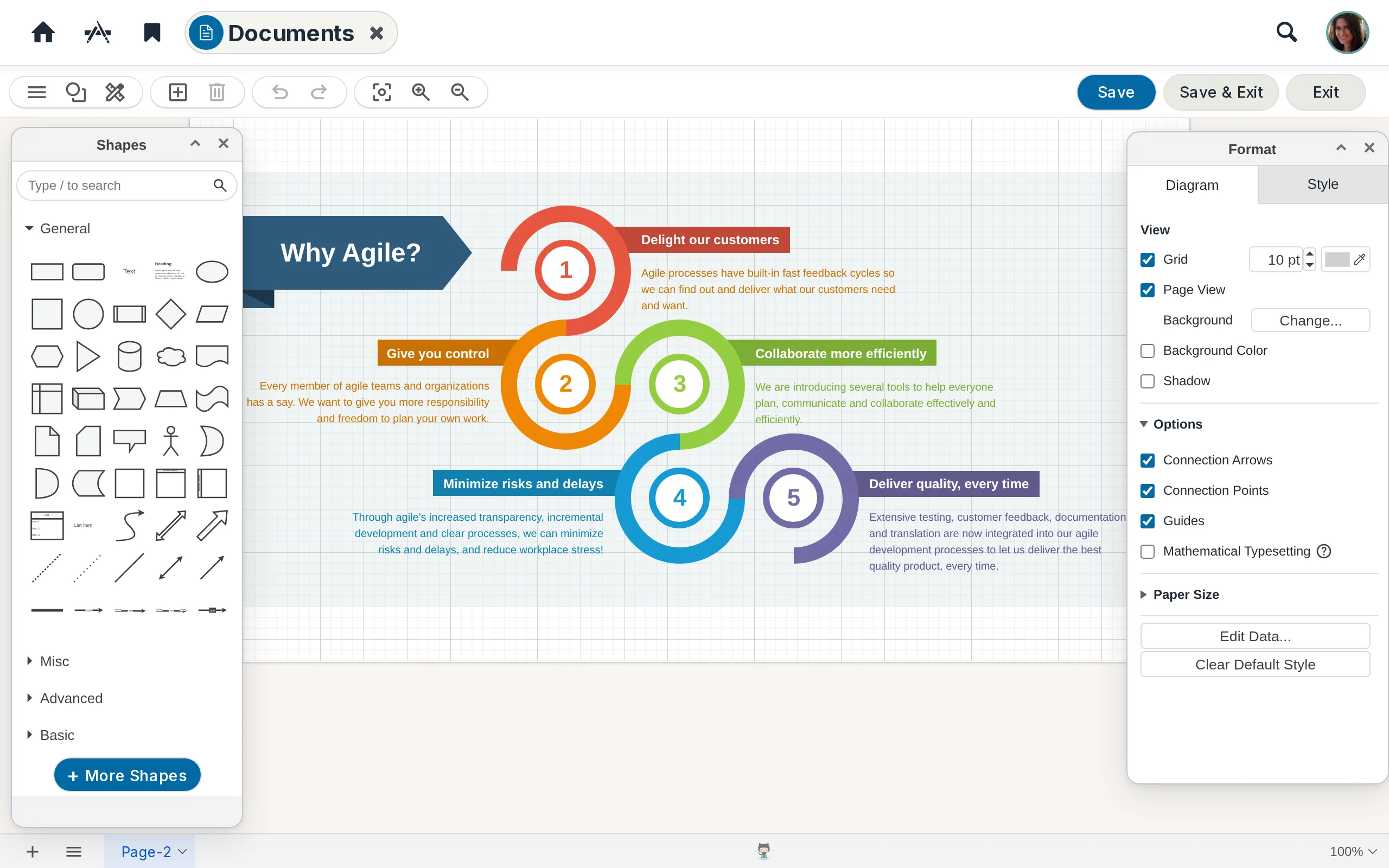
Open a Diagram in any team space and the built-in draw editor opens right there — shapes, connectors, styles, multi-page canvases, no external tool to install. Diagrams live in the team space alongside every other document, so the latest org chart stays one click away from members instead of buried in someone’s downloads folder.
Tasks — the team space’s todo board
The Tasks tab is the team space’s to-do board. Each task can be assigned, scheduled, grouped under a milestone, and moved through Open → In progress → Closed. Group tasks by milestone, due date, assignee, or state — your preference is saved per team space. Team space tasks gather alongside personal ones in the Tasks app.
Events that surface on every member’s calendar
Events created inside a team space carry a start and end time, an optional all-day flag, location, timezone, and an optional video-conference link. Every invited person can RSVP Accept, Maybe, or Decline. The same events appear in the hub-wide Calendar for everyone they’re scoped to.
A meeting room per team space
Every team space automatically comes with its own video-conference room. Reach it from the Video conference tab inside the team space, or from the Meetings app, where every team space you belong to is listed in the sidebar.
A group chat for the team
Every team space has its own group chat — a private channel where members ask quick questions, share files and links, react to a message, and pick up a conversation where it was last left. The thread stays inside the team space; nobody outside it sees what’s said. Mentions and replies surface as notifications, and the chat sits one tab away from the team space’s documents, tasks, calendar, and meeting room.
Updates scoped to where they belong
Updates written from inside a team space stay scoped to that team space and only reach its members; updates written at the hub level reach everyone. Same Updates app, two audiences, no confusion.