Everyone, in one searchable directory
The Contacts app is your address book for everyone involved in this environment: colleagues with user accounts, external partners, supporters, and emergency services. Look up a person, see their profile and what they’ve been contributing across team spaces, keep a shortlist of favourites, and reach the right person in a hurry.
The search box at the top of the sidebar searches names, email addresses, job titles, and group/division/emergency-service names as you type — pick a result to jump straight in.
Categories that make sense at a glance
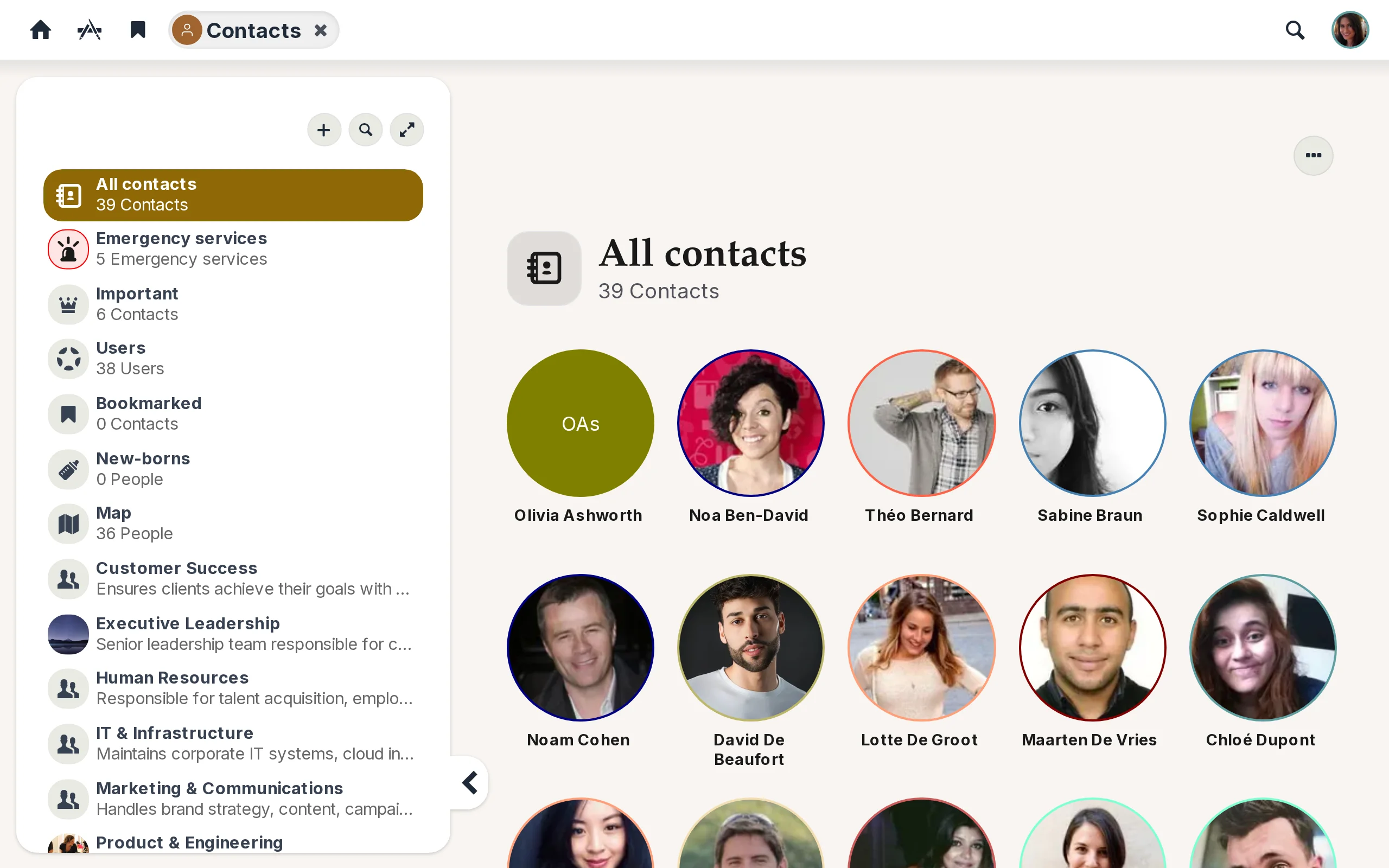
The sidebar lists every category of contact:
- All contacts — everyone, internal users and external alike, in one list.
- Users — only people with an account on the platform.
- Important — people and services an administrator has flagged. They also surface on the home page and every team space landing.
- Bookmarked — your personal starred list.
- Newborns — users whose profile birthdate falls in the last year, a light-touch way to welcome new arrivals.
- Map — users who have set a location, plotted as avatar markers on a map.
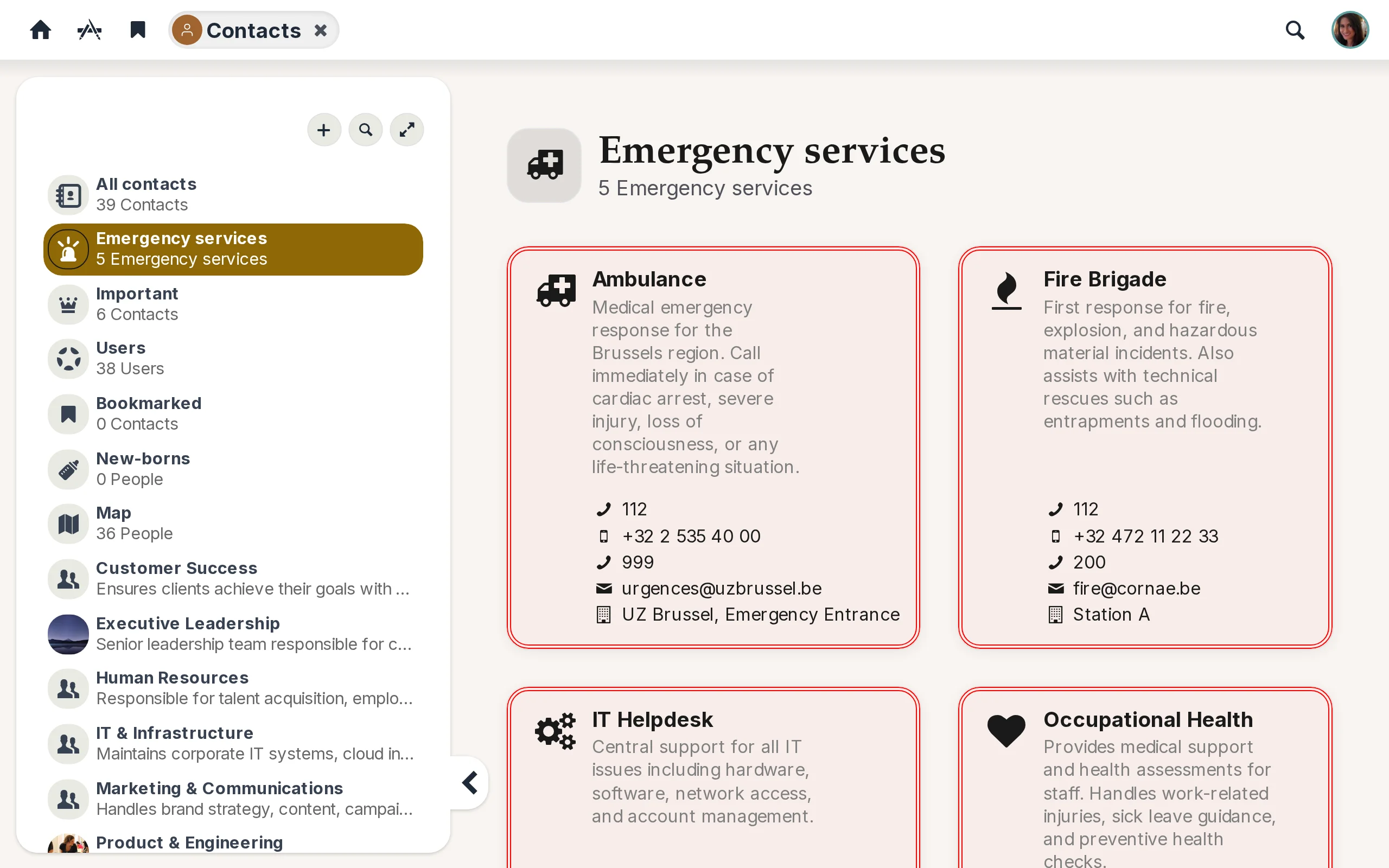
- Emergency services — a separate list for lifeline numbers like a doctor, a hotline, or an in-house safety desk.
Below that, every group and division you belong to has its own entry, plus a smart group for each team space.
Profiles with depth
Clicking a user opens a profile with three tabs:
- Information — avatar, job title, email, phone, department, location (with map link), website, birthdate, biography, and group memberships.
- Updates — what the person has contributed across team spaces you can see.
- Documents — documents the person has authored.
Star anyone (or any external contact, or any emergency service) to keep them in your Bookmarked list. Bookmarks are personal — only you see them.
Groups, divisions, and smart groups from team spaces
A group is a named set of users with optional description, logo, and a list of maintainers who can edit it. A division is a parent category that contains several groups — for example, a Board division might contain Treasurers and Secretaries.
A smart group is automatic: every team space you belong to appears in the sidebar as a group, with members shown by role (Contributors, Bystanders, Administrators). Smart groups are read-only here — to add or remove people, open the team space’s own member settings.
On any group detail page, the More menu offers Download data as CSV — first name, last name, email of every member, sorted alphabetically — ready for a mail-out or a spreadsheet.
Emergency services, one click from anywhere
Emergency services live in their own list, designed for situations where someone needs a number quickly. Because they’re flagged as Important, they also appear on the home-page portlet and on every team space landing — so a member can reach them without first navigating into Contacts.